
The iPhone Duo gives your website a screen that can change size while someone is using it. Your first job is to check that they can still read, navigate and finish what they started.
Most sites can handle that through responsive web design. A new phone is a reason to test your key pages. It does not, by itself, call for a redesign.
Apple’s first folding iPhone arrives on 23 October 2026 in its initial launch markets. Apple’s launch announcement confirms the release date.
iPhone Duo screen sizes and website viewports
The iPhone Duo has a 5.4-inch outer screen when folded and a 7.6-inch inner screen when unfolded. These are diagonal screen sizes. The browser controls how much space your website can use.
| Specification | Folded | Unfolded |
|---|---|---|
| Screen size | 5.4 inches | 7.6 inches |
| Screen resolution | 1398 × 2034 pixels | 2670 × 1878 pixels |
| Aspect ratio, width to height | About 1:1.45 | About 1.42:1 |
| Frame in our mockups | 466 × 678 CSS pixels | 890 × 626 CSS pixels |
The table shows the outer screen in portrait and the inner screen in landscape. Screen sizes and resolutions come from Apple’s technical specifications. Aspect ratios are calculated from those resolutions and rounded.
Our mockup frames divide the panel pixels by an assumed 3× scale. They are illustrative sizes, not measured Safari viewports. Browser controls, safe areas, orientation and Split View change the usable page area.
Use the frames to compare layouts in Figma, then test the page in the browser. Check that menus, cookie choices and forms remain usable as the available width and height change.

A familiar change for web teams
The iPhone 12 brought 5G to the range. For a change in how we use the screen, the closer precedent is the iPhone X.
It replaced the Home button with gestures and gave designers new edges to account for. Apple’s iPhone 12 announcement, iPhone X announcement.
Websites had a different starting point from native apps. Safari kept pages inside a safe area by default. Web teams could then choose an edge-to-edge layout and add spacing around the screen’s cutouts. WebKit’s guidance explains that approach.
The Duo raises a similar design question: which parts of your site need to change when the space changes? Start with the tasks people came to do. That might be reading a service page, comparing plans or booking a demo.
Blueflame on three screen shapes
These views show Blueflame’s homepage in a regular iPhone shape, a folded Duo shape and an unfolded Duo shape. They use the same live website. No layout changes were made for the comparison.
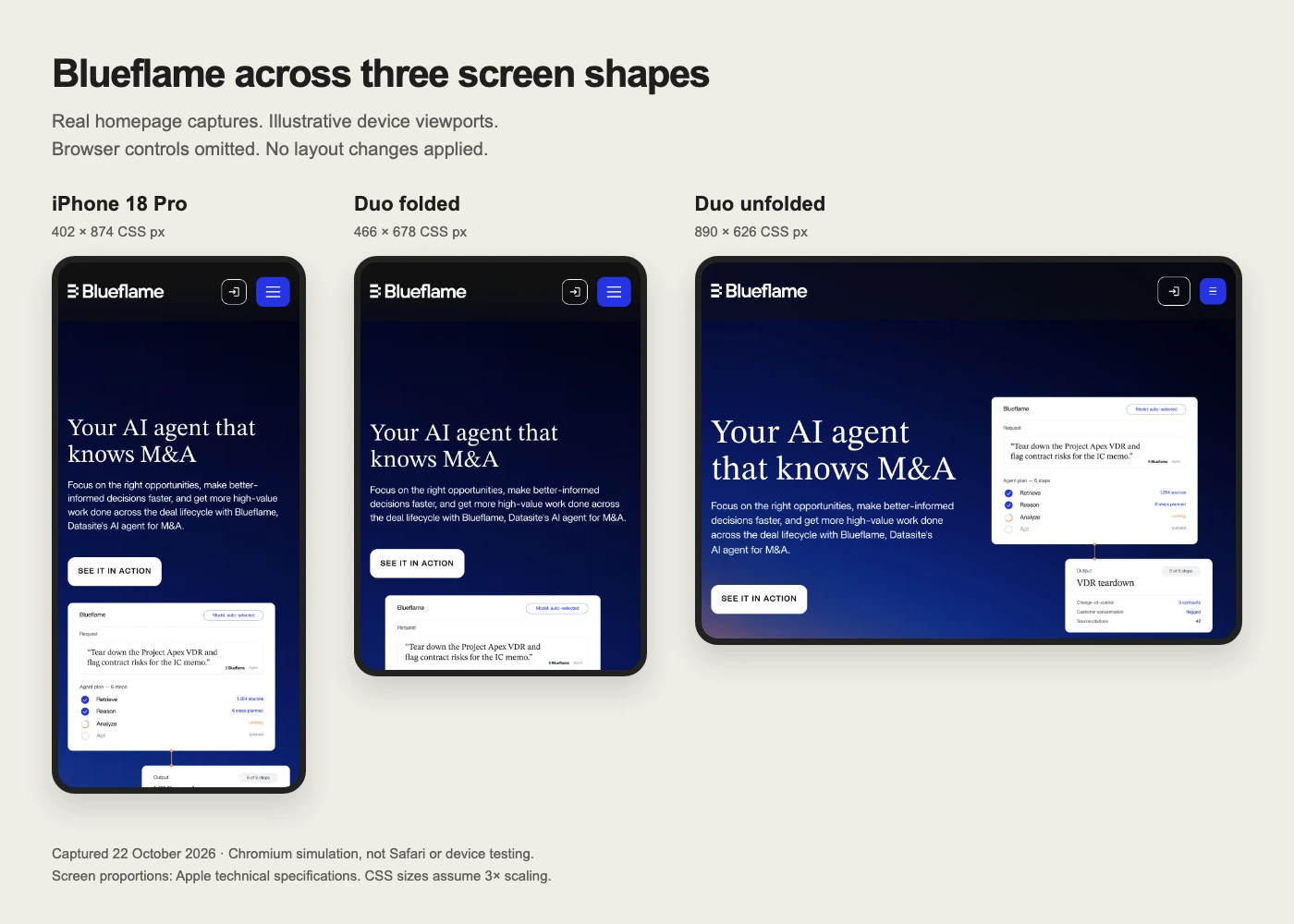
Look at the heading, button and product image. Their order and spacing affect what a visitor sees first. The wide view puts the copy and image beside each other; the narrow view stacks them.
Use the comparison to spot questions for your own site. Does your heading wrap cleanly? Is the main action easy to find? Does an image crop out the part that explains your product?
These are browser simulations, not Safari device tests. We used 402 × 874, 466 × 678 and 890 × 626 CSS pixels. Those sizes come from Apple’s panel resolutions with an assumed 3× scale.
Browser controls and safe areas reduce or change the usable page area. iPhone 18 Pro specifications, Duo specifications.
Safari’s sidebar belongs to Safari
Your website’s navigation will not move itself to the side. The browser controls its own buttons and tabs. Your CSS still controls the menu, header and buttons inside your page.
Apple puts native controls along the side on the outer display and in open landscape. Inner portrait uses horizontal bars.
In Split View, controls sit on each app’s outer edge, so they can appear on the left. Apple’s Duo design guidance.
A web app can use a side menu if that helps people get around. But adding a second rail beside Safari’s controls can squeeze the content. Try the layout with real labels before moving familiar navigation.
Cookie banners on mobile need their own check
Grata’s homepage shows another part of the first visit: cookie choices. The panel occupies a large part of the view in these captures. We left it open so you can see the space it needs.
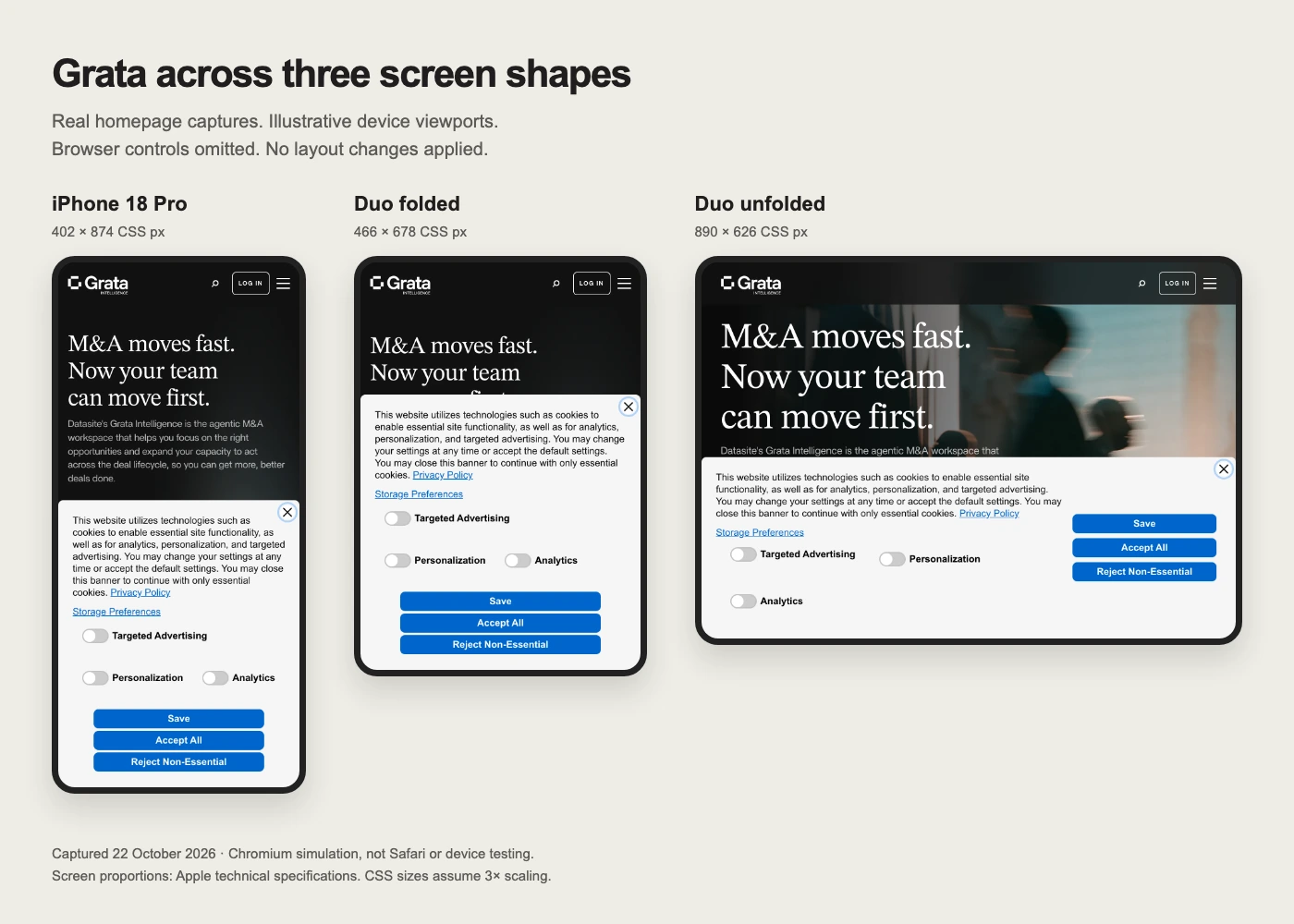
A page can look fine with every overlay closed and feel crowded when a visitor first arrives. Include cookie choices, chat widgets and newsletter popups in the review.
- Check that the panel’s text and choices fit in the available height.
- Reach the close control and every consent option without zooming out.
- Open the site menu while a chat widget is visible to check for overlap.
- Repeat the visit after choosing a cookie preference.
Keep consent controls usable. Hiding them to tidy a screenshot would miss the point of the test.
These images show the first-visit layout; they do not establish a consent fault or a loss of conversions.
Five more pitfalls worth testing
Tall heroes can bury the next step
A large header and full-height hero can leave little room for the offer on a short screen. Try a shorter viewport as well as a narrower one. Keep the heading, useful proof and primary action easy to find.
For developers, review fixed heights and viewport units. svh measures the smaller viewport; dvh changes with browser UI. Choose based on the behaviour you need, then test with the keyboard too. Neither unit is a universal keyboard fix. WebKit’s viewport-unit explanation.
Wider screens still need touch controls
Opening a foldable phone does not give its user a mouse. A menu that switches to hover-only at a wider breakpoint can leave touch users stuck. Keep a tap or click route to every action. MDN’s media-query guidance covers hover and pointer checks.
Forms must keep unfinished input
Type into a form, then resize the view. Open and close the keyboard. Check the focused field, error message and submit button. A visitor should not need to re-enter their details because the layout changed.
Test a failed submission as well as a clean form. An error can add several lines of text and push the next control out of reach. The same applies to long dropdown lists and date pickers.
Fixed buttons need space at every edge
Sticky demo buttons and chat bubbles can compete with browser controls or screen cutouts. Check each corner in both orientations. For an edge-to-edge page, review all four safe-area insets.
“Safe area insets are not a replacement for margins.”
Keep enough ordinary spacing for a button to be easy to tap, even when an inset is zero. Test enlarged text too. A longer button label can expose a problem that the default font size hides.
Two columns can become too cramped
More width can help with a pricing comparison or a document beside its preview. It can also tempt you to show too much. Collapse the layout when either column becomes hard to read.
For web apps, preserve the selected item when columns collapse. Someone reviewing a record should return to the same record. They should also be able to reach the same actions in either layout.
Split View can make the page narrow again
The unfolded screen can hold two apps, or two Safari windows. Your website may get only part of that space. Apple’s own image below shows how two apps share the display. Apple’s launch announcement.
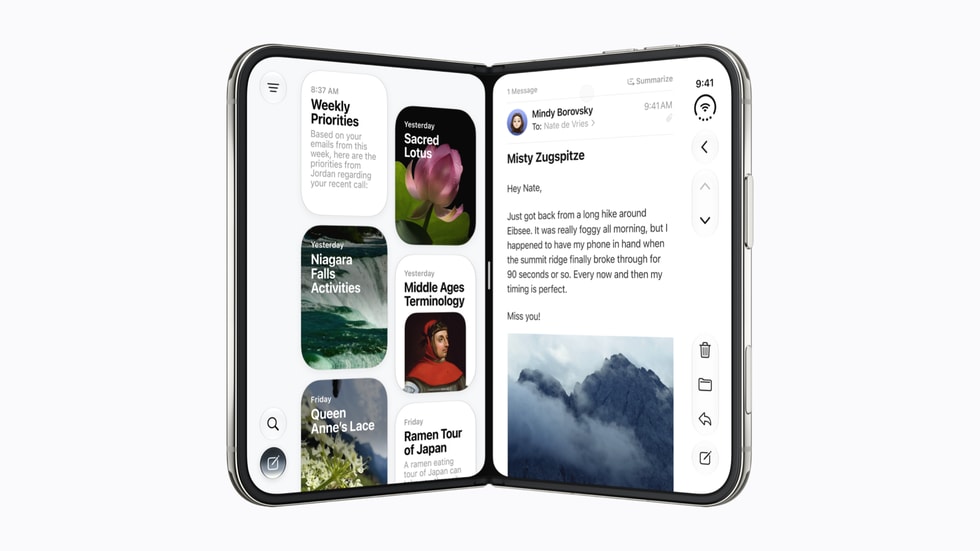
Test a narrow window even when you are designing for the open phone. Keep tables within their own scroll area, make the menu reachable and avoid stretching text across the full screen.
Do not make a key task depend on detecting the fold itself. WebKit’s public API discussions mention experimental simulator support behind a flag. That does not confirm default support on a customer’s phone. Device Posture discussion, Viewport Segments discussion.
Start with your existing Webflow breakpoints
Webflow’s breakpoint names describe ranges of widths. They do not identify the device in someone’s hand. A phone can use styles you associate with the tablet view.
Drag the Designer canvas between sizes and watch the layout change. Check inherited styles before adding overrides. Webflow’s breakpoint guide explains the cascade and how to test widths between presets.
Pay close attention to fixed-width cards, hidden overflow and interactions tied to one breakpoint. A layout fix should also work on other phones and tablets. Avoid adding a special case just because a viewport belongs to a new device.
Use Figma to explore the page
Apple provides Duo kits for Figma and Sketch through its design resources. Use them for the device shape and reference layouts.
Create views for the folded screen, unfolded landscape, unfolded portrait and Split View. Add browser controls as a separate layer. Then put your real heading, navigation labels and form fields inside the page area.
A frame can help you decide where content belongs. It cannot prove that a menu opens or a form keeps its state. Apple describes browser viewport presets as approximations and recommends the Simulator for closer checks. Safari Responsive Design Mode.
Run one complete journey before making changes
Pick a page that matters to your visitors. For a marketing site, start with the route from a product page to a demo request. For a web app, choose a task that includes both reading and editing.
- Load the page with its first-visit panels visible.
- Read the offer and open the navigation.
- Start the form or select an item.
- Resize, rotate and switch between the available views.
- Finish the task and check that your progress remains intact.
Record each failure with the page URL, browser, screen state and steps to repeat it. Fix the specific issue, then repeat the same journey. If the task works comfortably throughout, keep the layout you have.